Document Workflow Automation: How to Build End-to-End Document Pipelines
Learn how to build automated document workflows that classify, extract, validate, route, and export document data without manual intervention. A practical guide with examples.
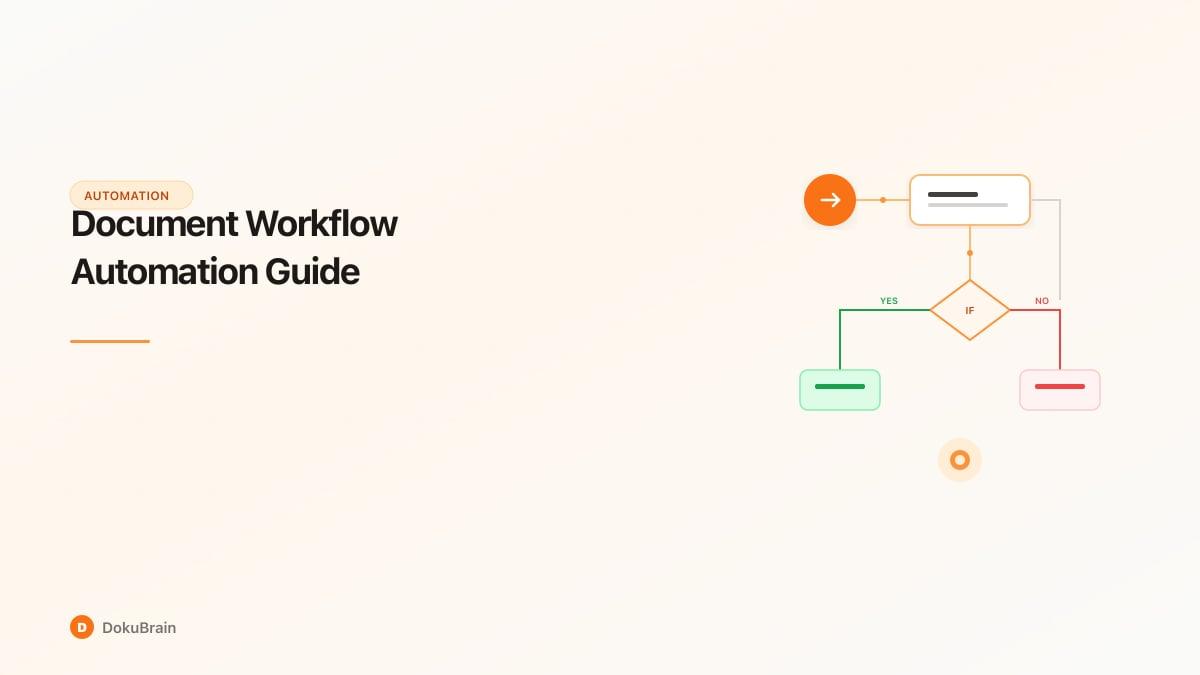
What Is a Document Workflow?
A document workflow is a defined sequence of steps that a document moves through — from the moment it arrives to the moment the extracted data reaches its final destination. Every organization has document workflows, whether they are formally defined or not.
A typical invoice workflow, for example, involves these steps: receive the invoice (email, mail, portal), classify it (which vendor, which department, which project), extract key data (amounts, dates, line items), validate the data (does the PO match? is the amount within budget?), route for approval (manager review for amounts over a threshold), and export to the accounting system.
When these steps are done manually, they are slow, inconsistent, and opaque. The invoice sits in someone's email inbox until they get to it. Classification depends on who opens it. Validation is hit-or-miss depending on workload. Approval routing is ad hoc — walking the invoice to a manager's desk or forwarding an email and hoping for a reply. And export means manual data entry into the accounting system.
Document workflow automation replaces each manual step with a configured, automated action. The result is a pipeline that processes documents consistently, quickly, and with full visibility — every document's status is tracked from receipt to completion.
The Five Stages of a Document Pipeline
Every document workflow follows the same five-stage pattern, regardless of the document type or industry.
Stage 1 — Ingestion: Documents enter the pipeline via upload (drag-and-drop, API), email (forwarded or polled from an inbox), scan (from a multifunction printer or mobile app), or integration (from Google Drive, Dropbox, or other cloud storage). The key principle: make it effortless for documents to enter the pipeline so nothing gets lost or delayed.
Stage 2 — Classification: The AI identifies the document type. Is this an invoice, a contract, a receipt, a form, or correspondence? Classification determines which extraction template to apply and which downstream workflow to follow. DokuBrain supports automatic classification across 16+ document types, or you can define custom classification rules.
Stage 3 — Extraction: The appropriate extraction template processes the document and pulls out structured data. For an invoice: vendor, amounts, line items. For a contract: parties, dates, obligations. For a form: all field values. Each extracted field includes a confidence score.
Stage 4 — Validation and routing: Business rules evaluate the extracted data. Is the invoice amount within the PO tolerance? Is the contract term within approved limits? Are all required fields present? Documents that pass validation are routed to the next step. Documents that fail are flagged for human review with the specific issues highlighted.
Stage 5 — Export and action: Clean, validated data is sent to its destination — Google Sheets, accounting software, CRM, ERP, or any system with an API. This is the final output of the pipeline: structured, validated data in the system where it is needed.
Building Your First Automated Workflow
The best way to start with document workflow automation is to pick one high-volume, repetitive document workflow and automate it end-to-end.
The ideal candidate has these characteristics: you process the same type of document repeatedly (at least 20+ per month), the documents have a consistent structure (even if the layout varies between senders), the extracted data goes to a specific destination (spreadsheet, accounting system, database), and the current manual process is painful enough that automation will have an obvious impact.
For most businesses, invoice processing is the best starting point. It is high-volume, the destination is clear (accounting system or tracking spreadsheet), and the ROI is easy to measure.
Here is the practical setup in DokuBrain: create a new workflow with an email ingestion trigger — documents sent to your dedicated processing inbox will be picked up automatically. Add a classification step (optional if you only process one document type). Add an extraction step using the Invoice Processor template. Add a validation step: check that vendor name, invoice number, and total are present, and flag documents with extraction confidence below 90%. Add an export step to Google Sheets, mapping each extracted field to the appropriate column.
Test the workflow with 10 invoices. Review the results. Adjust the validation rules if needed. Then open the pipeline for production use.
Advanced Workflow Patterns
Once your first workflow is running, you can build more sophisticated patterns.
Conditional routing: Route documents based on extracted data. Invoices over $10,000 go to a senior manager's approval queue. Contracts from new vendors go through legal review. Expense receipts over budget trigger a notification to the department head.
Multi-document workflows: Some processes involve multiple related documents. A procurement workflow might process both the PO and the invoice, then automatically match them. A loan application workflow processes the application form, income documents, and identity verification documents as a single package.
Parallel processing: When a document needs to be sent to multiple destinations or reviewed by multiple people simultaneously, configure parallel branches in your workflow. For example, an invoice can be exported to both the accounting spreadsheet and the project cost tracker at the same time.
Scheduled processing: Not all documents need real-time processing. Configure batch processing schedules for workflows where near-real-time is not necessary — process all uploaded documents every hour, or run a nightly batch for documents that arrived during the day.
Error handling and retry: Configure what happens when a step fails. If Google Sheets export fails due to a connectivity issue, should the workflow retry automatically? How many times? Should it notify someone after a failure? Robust error handling ensures your pipeline runs reliably without constant supervision.
Quick Start Steps
Choose your highest-volume document type
Pick one repetitive document workflow (e.g., invoices) that you process 20+ times per month.
Set up an ingestion channel
Configure email forwarding, a shared upload folder, or API endpoint as the entry point for documents.
Configure classification and extraction
Select the appropriate extraction template or create a custom schema for your document type.
Add validation rules
Define checks: required fields present, confidence above threshold, amounts within expected range.
Connect your export destination
Map extracted fields to Google Sheets columns or configure API export to your downstream system.
Test with 10 documents and go live
Process a test batch, review results, adjust validation rules if needed, then open the pipeline for production use.
Frequently Asked Questions
What is a document workflow?
A document workflow is a defined sequence of steps a document moves through — from arrival to final data delivery. Steps typically include ingestion, classification, extraction, validation, routing, and export to downstream systems.
Can I build document workflows without coding?
Yes. DokuBrain provides no-code workflow builders where you configure ingestion channels, classification rules, extraction templates, validation logic, and export destinations through a visual interface.
What are the five stages of a document pipeline?
The five stages are: (1) Ingestion — documents enter via upload, email, or API; (2) Classification — AI identifies document type; (3) Extraction — data fields are pulled out; (4) Validation — business rules check the data; (5) Export — clean data is sent to its destination.
Ready to try it yourself?
Start processing documents with AI in seconds. Free plan available — no credit card required.
Get Started Free