Extract Data from PDF to Google Sheets Automatically — Complete Guide
Stop copying data manually from PDFs into spreadsheets. Learn how to automatically extract structured data from any PDF and sync it to Google Sheets in real-time.
Why Teams Still Copy-Paste from PDFs
It is one of the most common workflows in business: you receive a PDF — an invoice, report, or form — and you need the data inside it in a spreadsheet. So you open the PDF, open Google Sheets, and start copying values one by one.
This happens millions of times a day across organizations worldwide. Finance teams copy invoice totals. HR teams copy resume details. Operations teams copy order information. And every single time, it is manual, slow, and prone to errors.
The reason this persists is that PDFs are designed for human reading, not data extraction. The data is locked in a visual format that spreadsheets cannot natively understand. Traditional copy-paste is unreliable because PDF text selection often grabs wrong content, misses table structures, or breaks formatting.
The Modern Solution: AI + Google Sheets Integration
The modern approach combines AI-powered document understanding with direct Google Sheets integration. Instead of manually identifying and copying each field, AI reads the entire document, understands its structure, and extracts all relevant data points into a structured format.
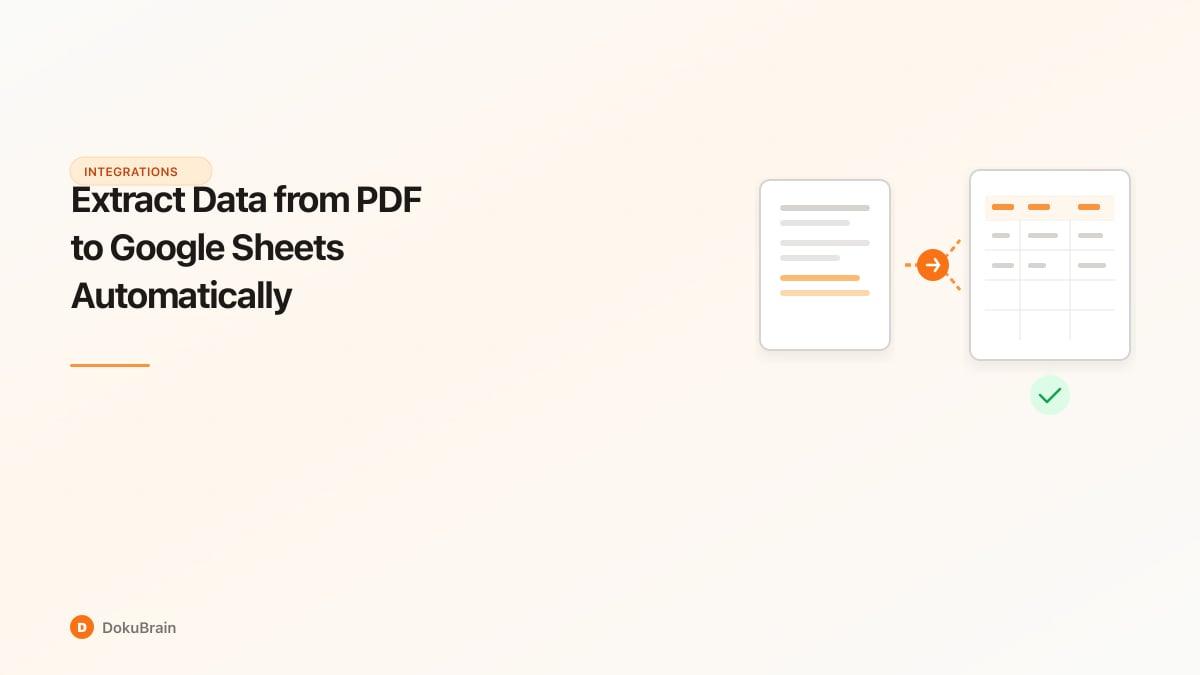
With DokuBrain, the workflow becomes: upload a PDF (or set up automatic ingestion via email), AI extracts all structured data in seconds, and the data automatically appears in your Google Sheet — mapped to the right columns.
This works for any type of PDF: invoices, receipts, contracts, forms, reports, tax documents, and more. You choose which fields to extract using pre-built templates or create custom extraction schemas for your specific documents.
The Google Sheets sync happens in real-time. As soon as a document is processed, a new row appears in your spreadsheet with all the extracted data. You can set up one spreadsheet per project, per document type, or any other organization that makes sense for your workflow.
Setting Up PDF-to-Sheets Automation
Getting started takes less than 5 minutes:
First, create a DokuBrain account and connect your Google account. DokuBrain uses OAuth2 for secure access — it can only write to sheets you authorize.
Second, choose or create an extraction template. For invoices, use the pre-built Invoice Processor template. For other document types, browse the 24+ built-in templates or create a custom one.
Third, configure your Google Sheets mapping. Tell DokuBrain which spreadsheet to write to and how extracted fields map to columns. For example, map "vendor_name" to Column A, "invoice_total" to Column B, and "due_date" to Column C.
Fourth, start processing. Upload PDFs manually, or set up automatic ingestion via email forwarding or API. Every processed document automatically adds a row to your sheet.
For advanced users, DokuBrain workflows let you add conditional logic — for example, route invoices over $10,000 to a separate approval sheet, or flag documents with low extraction confidence for manual review.
Beyond Simple Extraction
PDF-to-Sheets automation is just the starting point. Once your data flows automatically into Google Sheets, you unlock powerful downstream possibilities.
Build dashboards and charts that update automatically as new documents are processed. Set up Google Sheets formulas that calculate running totals, flag anomalies, or trigger notifications. Connect Sheets to other tools via Zapier or Apps Script for end-to-end automation.
For example, an AP team can have invoices automatically extracted, added to a tracking sheet, cross-referenced with purchase orders (using VLOOKUP or similar), and flagged for approval — all without touching a single document manually.
The key is that DokuBrain handles the hardest part — understanding unstructured PDF content and converting it to structured data. From there, the data flows wherever you need it.
Quick Start Steps
Create account and connect Google
Sign up for DokuBrain and authorize your Google account using secure OAuth2. DokuBrain can only access sheets you approve.
Choose an extraction template
Select a pre-built template for your document type (invoice, receipt, contract, etc.) or create a custom extraction schema.
Configure Google Sheets mapping
Select your target spreadsheet and map extracted fields to columns — for example, vendor_name to Column A, total to Column B.
Upload and process PDFs
Upload PDFs manually or set up automatic ingestion via email forwarding. Each document is processed and the data appears in your sheet automatically.
Frequently Asked Questions
Can I automatically extract data from a PDF into Google Sheets?
Yes. AI-powered tools like DokuBrain extract structured data from any PDF and sync it directly to Google Sheets in real-time. Each processed document automatically adds a row with the extracted fields mapped to your chosen columns.
What types of PDFs can be converted to spreadsheet data?
Any PDF containing structured information: invoices, receipts, contracts, forms, reports, tax documents, bank statements, and more. The AI understands document structure and extracts specific fields — not just raw text.
Is the Google Sheets connection secure?
Yes. DokuBrain uses OAuth2 for Google account authorization. It can only write to sheets you explicitly grant access to, and the connection can be revoked at any time.
Ready to try it yourself?
Start processing documents with AI in seconds. Free plan available — no credit card required.
Get Started Free