The Complete Guide to Document Workflow Automation for Small Business (2026)
Document workflow automation turns paper chaos into real business actions — invoices to payments, contracts to approvals, resumes to ATS. Here's the full loop, step by step.
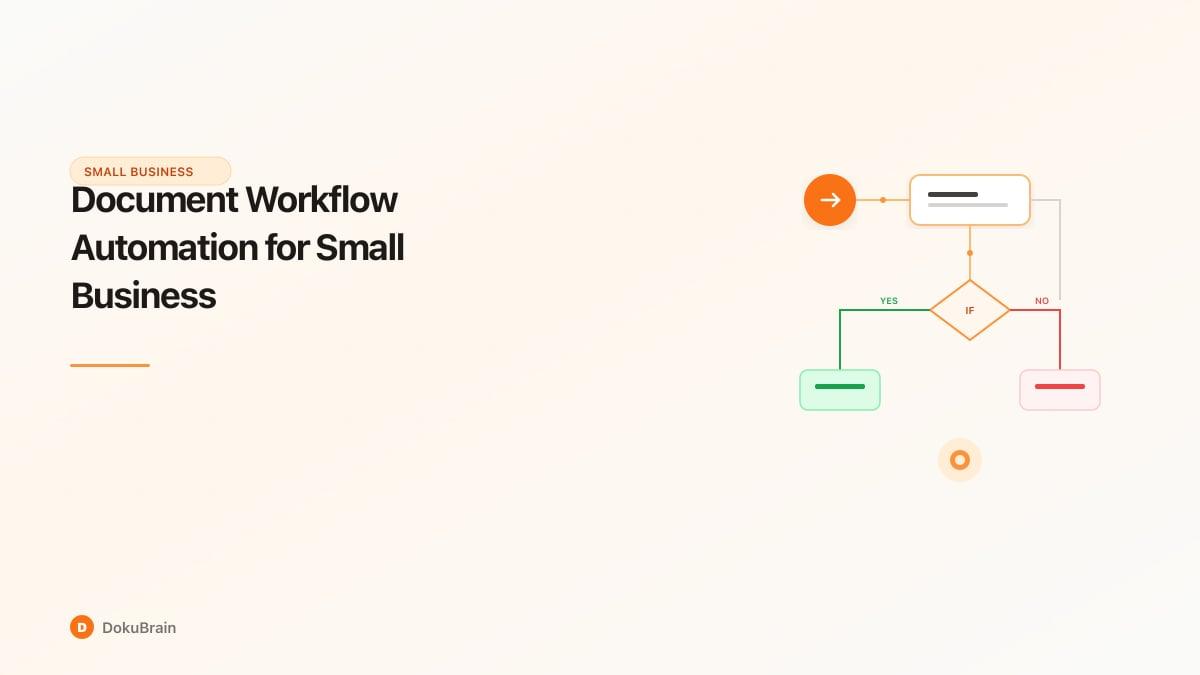
What Is Document Workflow Automation? (And What It Actually Means for Your Team)
An invoice lands in your accounts payable inbox at 9:14 AM on a Tuesday.
By 9:16 AM, it has been opened, read, classified as a vendor invoice, and the key fields — vendor name, invoice number, line items, total, due date — have been extracted. By 9:17 AM, because the total exceeds $1,000, it has been automatically routed to the finance director for approval. By 9:23 AM, it is approved. By 9:24 AM, the data is sitting in QuickBooks, a payment is scheduled, and the invoice is archived with a complete audit trail.
No one touched it. No one typed anything. No one forgot about it.
That is document workflow automation working the way it should. Not filing documents faster. Not searching for them more efficiently. Actually making them do something — triggering real business actions, pushing data to real systems, getting things off your team's plate entirely.
Document workflow automation is the use of software to move documents through a series of business steps automatically — without a human manually handling each stage.
A lot of what gets sold as "document automation" is just better filing. You upload a PDF, it gets stored in the right folder, maybe with a tag or two. That is document management, and it is genuinely useful, but it is not what we are talking about here. A document workflow involves a sequence of business actions triggered by the document's arrival and content.
When small business owners tell us they spend 6–10 hours a week on "document work," they almost never mean finding documents. They mean the manual steps that follow finding them: re-keying data into other systems, routing things for approval by forwarding emails, chasing down the status of a document someone was supposed to review. Those are workflow problems, not storage problems.
Every automated document workflow — regardless of industry or document type — moves through five stages:
1. Ingestion — The document enters the system. This might be an email attachment, a file upload, a scanned physical document, or an API call from another system.
2. Classification — The system identifies what kind of document it is. Invoice, contract, purchase order, resume, lease agreement — knowing the document type determines what happens next.
3. Extraction — The system reads the document and pulls out the structured data fields relevant to that document type. For an invoice: vendor name, invoice number, line items, amounts, due date. For a contract: parties, effective date, key clauses, termination terms.
4. Routing and Triggering — Based on the extracted data, the system decides what to do next. Route to a specific person for approval. Flag for review because a field is missing or unusual. Trigger an automated action directly if no human review is needed.
5. Downstream Action — The output gets pushed to wherever it needs to go. QuickBooks, Xero, Salesforce, an HR system, a contract database. The document has now done something in the real world.
Why Small Businesses Lose Hours Every Week to Documents
The math is not complicated, but it adds up fast.
A mid-size accounting firm handling 200 invoices a month. Two minutes to open, review, and key the data from each one into their accounting system. That is 400 minutes — roughly 6.5 hours — every month, just for data entry. Add another 90 minutes chasing approvals via email, an hour reconciling entries against original documents, and 30 minutes filing. Call it 9 hours a month, minimum.
At a fully-loaded cost of $40/hour for a bookkeeper, that is $360/month — $4,320/year — for one document type, in one department, at a company of 15 people.
Now multiply across contracts, expense reports, HR documents, vendor agreements, and compliance filings. The numbers get uncomfortable quickly. The real cost hides inside "bookkeeping labor" or "admin time," which is why it persists.
Invoices. The most common pain point, and the best place to start. Every business receives invoices. Most businesses still process them by having someone open the email, read the invoice, type the numbers into accounting software, and then file the email or move the PDF to a folder.
Contracts. A legal team or operations manager receives a vendor contract, reads through it, manually notes the key terms in a spreadsheet or CRM, routes it via email for review, tracks responses via email thread, and eventually files the signed version. When they need to find all contracts expiring in the next 90 days, they open the spreadsheet and hope it is current.
Employee onboarding. A new hire returns a signed offer letter, W-4, direct deposit form, and benefits enrollment form. An HR manager reads each document, types the relevant data into the HRIS, and emails IT to provision system access. If anything is missing, they track it down manually.
These are not unusual scenarios. They are the default for most small businesses, and the time lost to them is real. Research from McKinsey found that workers spend an average of 1.8 hours per day searching for and gathering information — much of it in documents.
How Document Workflow Automation Works
Let us walk through each of the five stages in detail — how the technology actually functions, what it needs from you to work well, and where things typically go wrong.
Step 1 — Document Ingestion (Email, Upload, Scan)
Automation starts with getting documents into the system. Email ingestion: you configure a dedicated email address (something like invoices@yourcompany.com) and forward relevant documents there. The automation system monitors the inbox, picks up attachments, and starts the workflow. Upload portal: a web-based interface where documents can be dropped or dragged in. Scan-to-workflow: for physical documents, a networked scanner can be configured to send scanned files directly to an ingestion endpoint.
The ingestion layer also handles preprocessing: splitting multi-page PDFs, standardizing file formats, checking whether a file is legible enough to process, and flagging anything that arrives corrupted or unreadable.
Step 2 — Automatic Classification
Once a document is in the system, it needs to be identified. Classification is the step where the system reads the document and assigns it to a type: invoice, contract, purchase order, resume, W-2, lease agreement, and so on. Modern classification systems use a combination of visual layout analysis and text content analysis. A well-trained classifier can identify document types with 95%+ accuracy across standard business document categories.
Classification matters because it determines which extraction rules apply. An invoice extraction profile looks very different from a contract extraction profile. Classification confidence matters as much as accuracy — a system that is uncertain about a document type should flag it for human review rather than proceeding with the wrong extraction profile.
Step 3 — Data Extraction (Fields, Tables, Metadata)
This is where the document gives up its structured data. For a vendor invoice: vendor name, vendor address, invoice date, invoice number, due date, line item descriptions, line item amounts, subtotal, tax, total, and payment terms.
The extraction engine needs to understand that the same information can appear in dozens of different layouts across hundreds of different vendor invoice formats. Good extraction handles this variance without needing a custom template for each vendor.
Structured field extraction handles clearly labeled fields. Table extraction handles line items — rows and columns that need to be read as structured data. This is harder than it looks: tables in PDFs often have no underlying grid structure; the system is reconstructing them from the spatial position of text on the page.
Step 4 — Workflow Trigger (Approval Routing, System Push)
With extracted data in hand, the workflow engine decides what happens next based on rules you define. Rules can be simple (if the invoice total is under $500 and the vendor is on your approved vendor list, approve automatically) or more complex (if any line item does not match a PO number in the system, put the invoice on hold and notify the purchasing team).
The routing layer handles notifications (email, Slack), deadlines (escalate if not approved within 48 hours), and conditional branching (different paths based on data values).
This is the stage where most small business document systems break down. They have ingestion (email). They have rough classification (file folders). They have manual extraction (someone types). But they have no automation layer that reads the extracted data and decides what to do with it.
Step 5 — Downstream Action (QuickBooks, Slack, CRM)
The final stage is where the workflow connects to the rest of your business. Approved invoice data goes directly to QuickBooks or Xero — no re-keying, no copy-paste. Extracted contract terms are written to your CRM or contract database. Parsed resume fields go to your ATS. Purchase order line items update your inventory system.
The downstream integration is what separates document workflow automation from document management. Most modern document automation platforms support pre-built integrations with the most common small business tools: QuickBooks, Xero, Salesforce, HubSpot, Slack, Microsoft 365, Google Workspace, and standard ERP systems.
Document Workflow Automation Examples by Team
The five stages above apply to any document type. Here is what they look like in practice for four common small business teams.
Finance: Invoice → Approval → Payment
The old way: invoices arrive via email across three different team inboxes. Someone periodically sweeps them into a "to process" folder. A bookkeeper opens each one, reads it, manually enters the data into QuickBooks, forwards the email to the appropriate approver, waits for a reply, and then schedules payment. Invoices regularly fall through the cracks. Approval emails get buried.
The automated way: all vendor invoices route to a dedicated invoices@ address. DokuBrain picks up each attachment, classifies it as a vendor invoice, and extracts the fields automatically. Rules check the invoice against the approved vendor list and the relevant PO number. Invoices under $500 from approved vendors approve automatically. Everything else routes to the right approver based on amount and department. Approved invoices push directly to QuickBooks. A payment run happens every Friday automatically.
What changes: bookkeeper time on invoice processing drops from 6 hours to under 30 minutes per month. Late payment fees stop. The audit trail is complete and searchable.
Legal: Contract → Clause Extraction → Risk Flag
The old way: a vendor sends a new service agreement. The in-house counsel or operations manager reads it in full, manually notes the key terms in a spreadsheet, highlights concerning clauses and emails them to whoever needs to review. Versioning is handled through increasingly confusing file names.
The automated way: contracts are uploaded or forwarded to the document workflow system. DokuBrain classifies them as contracts, extracts the key fields (parties, effective date, expiration date, auto-renewal clause, liability cap, payment terms, governing law), and flags clauses that deviate from standard terms. A structured summary is generated and routed to the reviewer, who sees a clean data view alongside the original document. Key dates are written to the contract database automatically.
What changes: contract review time for standard vendor agreements drops by roughly 60%. The muscle memory of "check the auto-renewal clause" stops being a human responsibility.
HR: Resume → Parsing → ATS Push
The old way: job applications arrive via email, LinkedIn, a career page form, or multiple channels simultaneously. An HR manager manually opens each one, reads the resume, types the candidate's information into the ATS. During a busy hiring cycle, this takes 20–30 minutes per candidate before any actual evaluation begins.
The automated way: all resume submissions funnel through a single ingestion point. DokuBrain parses each resume — extracting name, contact information, work history, education, skills, certifications — and writes a structured record to the ATS automatically. The recruiter's first interaction is with organized, searchable candidate data, not a stack of PDFs.
What changes: time spent on application processing drops from 20+ minutes per candidate to under 2 minutes. Candidate data is now searchable — when a role opens up six months later, the talent pool is queryable rather than buried in email attachments.
Operations: Purchase Order → Vendor Matching → ERP
The old way: matching the incoming invoice to the original PO and the delivery confirmation is a three-document reconciliation job done manually by someone in accounts payable. Discrepancies trigger email chains that can take days to resolve.
The automated way: incoming vendor invoices are automatically matched against open POs in the ERP system. DokuBrain extracts the invoice line items and compares them against the PO: quantities, unit prices, vendor codes. Perfect matches auto-approve. Discrepancies above a tolerance threshold are flagged with both documents side by side for human review.
What changes: three-way matching — historically one of the most labor-intensive AP processes — becomes a largely automated exception-handling job. Your team spends time on the 5% of invoices with real discrepancies, not the 95% that match perfectly.
Choosing the Right Document Automation Software
The market in 2026 ranges from no-code workflow builders to full-stack intelligent document processing platforms. Here is how to navigate it without buying the wrong thing.
End-to-end or point solution? Some tools handle only one stage of the workflow — just extraction (Amazon Textract), just routing (Zapier), just storage (Google Drive). End-to-end platforms handle the full loop. For small teams, an end-to-end platform almost always beats stitching together five point solutions.
Training requirements. Older extraction tools require you to build custom templates for each document type — you point the system at each field it needs to find, field by field, for each vendor's invoice layout. Modern AI-based extraction does not require templates. It generalizes across layouts out of the box. If a vendor pitches you a "template setup process," ask how long it takes per document type.
Accuracy and confidence scoring. Every extraction system makes mistakes. The question is whether it knows when it is uncertain. A system that flags low-confidence extractions for human review is far safer than one that confidently returns wrong data.
Integration depth. Pre-built integrations with QuickBooks, Xero, Salesforce, or your specific ERP matter more than the number of integrations listed on the pricing page. Check whether the integration pushes data in both directions and handles errors gracefully.
Audit trail. For compliance-sensitive workflows (anything touching financial data, contracts, or employee records), you need a complete record of who processed what, when, and what decisions were made.
Questions to ask before you buy: Does the extraction require custom templates, or does it work out of the box on your document types? What happens when extraction confidence is low? What integrations are pre-built vs. requiring custom API work? Is there a complete audit trail? What is the pricing model — per document, per user, or flat monthly? Can you self-host if data sovereignty is a concern?
Cloud vs. Self-Hosted: Most small businesses should use a cloud-hosted solution. Easier setup, managed updates, predictable pricing. Self-hosted is worth considering if you handle highly sensitive documents where data sovereignty is a requirement, or operate in a jurisdiction with strict data residency rules (GDPR). The key functional difference: in a cloud-hosted setup, your documents are processed on the vendor's infrastructure. In a self-hosted setup, everything runs on your own servers and never leaves your environment.
How to Get Started: A 4-Week Implementation Plan
The biggest mistake small businesses make with document automation is trying to automate everything at once. Start with one workflow, get it working well, then expand.
Week 1 — Audit Your Most Document-Heavy Process
Before you touch any software, map out the workflow you want to automate on paper.
Pick the single document type that consumes the most manual time. For most small businesses, this is invoices. For service businesses, it might be contracts. For anyone hiring, it could be resumes.
Map every step currently involved: where does the document arrive? Who handles it first? What do they do with it? Where does the data go? What approvals are involved? Where are the delays? Where are the errors?
This map will become your automation spec. The more precisely you understand the current process, the better your automated workflow will perform.
Week 2 — Pick One Workflow to Automate First
Configure the automation for the single workflow you mapped in Week 1. Set up the ingestion point (dedicated email address or upload portal). Configure the extraction profile for your chosen document type. Define the routing rules. Connect the downstream integration.
Run 10–20 real documents through it in parallel with your current manual process. Compare the extracted data against what you would have entered manually. Note any discrepancies. Adjust extraction rules and confidence thresholds based on what you see. This parallel-run phase is not optional.
Week 3 — Connect Your Downstream Tools
With extraction working reliably, turn on the downstream integrations. Test the QuickBooks (or Xero, or Salesforce) connection with a few approved transactions. Verify that data appears correctly in the destination system.
Brief the people who will interact with the new workflow. The biggest implementation failures are not technical — they are change management. Make sure the people affected understand why the process is changing and what their new role in it looks like.
Week 4 — Measure and Expand
Track: how many documents processed, what percentage were handled fully automatically, what percentage required review, what the error rate was, and how much time was saved.
Most teams see 80–90% straight-through processing on their first automated workflow within the first month — meaning 80–90% of documents go from ingestion to downstream action without any human touching them. The remaining 10–20% are flagged for review because of genuine complexity, missing data, or edge cases the automation handled conservatively.
Once the first workflow is stable, identify the next highest-value target and repeat the process.
Common Mistakes Small Businesses Make with Document Automation
Starting too broad. "We want to automate all our documents" is not a project, it is a goal. Start with one document type, one workflow, one integration. Build confidence, then expand.
Skipping the mapping step. Automating a broken manual process just makes the brokenness faster. Before you configure anything, understand exactly how the current process works and where the real pain points are.
Ignoring data quality upstream. Automation reads what is in the document. If vendors send invoices missing PO numbers, or employees submit forms with fields left blank, the automation cannot invent the missing information. Some process improvement work needs to happen on the human side before the automation can fully close the loop.
Choosing a tool by feature count. The vendor with the longest feature list is not necessarily the best fit. What matters is how well the tool handles your specific document types, integrations, and volume.
Not defining what "good enough" looks like. Perfect automation does not exist. A system that handles 90% of documents without human intervention and flags the other 10% for review is an excellent outcome. Set realistic accuracy benchmarks before implementation so you evaluate the system fairly.
Automating without an audit trail. For anything touching financial records, contracts, or employee data, a complete and searchable record of what happened to each document is a compliance requirement. Verify that your chosen platform provides this before you go live.
What Document Workflow Automation Won't Solve
This section exists because most guides in this category do not include it. That is a disservice to the people reading them.
It will not fix broken underlying processes. If your approval process is ambiguous — people are not sure who should approve what, at what thresholds — automation will surface that confusion faster, but it will not resolve it. Define your processes clearly before automating them.
It will not eliminate judgment calls. Automation handles the routine. The non-routine still requires a human. A contract with genuinely unusual terms needs an attorney's review. An invoice with a large unexplained line item needs a human to ask the vendor a question. Think of automation as handling the 90% that should be routine so your team has bandwidth to focus on the 10% that genuinely requires thought.
It will not work well on truly unstructured documents. Highly formatted documents (invoices, contracts, standard forms) automate well. Emails with no attachments, meeting notes, or narrative reports with no consistent structure are harder and often not worth automating for extraction purposes. Search and retrieval tools handle those better.
It will not reduce headcount on its own. Document automation frees up time. What your team does with that time determines the actual business impact. The teams that get the most value from automation are the ones who redirect the freed capacity toward higher-value work — client service, financial analysis, proactive vendor management — rather than treating it as a cost reduction exercise.
Documents are not the goal. The business outcomes they contain — paid invoices, signed contracts, onboarded employees, matched purchase orders — are the goal. Start with one document type. Map the current process. Configure an automation that handles the routine and flags the exceptions. Measure what changes. Then expand.
Related reading: AI Invoice Processing Software: The SMB Buyer's Guide (2026) | What Is Intelligent Document Processing? | How to Extract Data from PDFs Automatically
Frequently Asked Questions
What is document workflow automation?
Document workflow automation is the use of software to automatically move documents through a series of business steps — ingestion, classification, data extraction, routing for approval, and pushing results to downstream systems like accounting software or CRMs — without requiring a person to manually handle each stage. When set up correctly, a document arrives (via email, upload, or scan) and the entire process runs without human intervention until a decision is genuinely required.
How do you automate document processing?
Automating document processing involves five steps: (1) Set up an ingestion point — email inbox, upload portal, or scan folder. (2) Configure automatic document classification so the system identifies document type. (3) Define extraction rules for the fields you need (vendor name, total, due date, etc.). (4) Set up workflow triggers based on extracted data — route for approval if amount exceeds a threshold. (5) Connect downstream systems so approved data flows directly to QuickBooks, your CRM, or wherever it needs to go. Most small businesses start with one document type — usually invoices — and expand from there.
What are examples of document workflow automation?
Common examples include: invoice processing (email arrives → fields extracted → routed for approval → pushed to accounting software), contract management (uploaded → clauses extracted → risk flags raised → sent for e-signature), employee onboarding (offer letter received → fields parsed → HR system updated → access provisioned), and purchase order processing (PO arrives → vendor matched → line items extracted → inventory system updated). Any process where a document arrives and triggers a series of downstream actions is a candidate for automation.
How much does document automation software cost?
Document automation software for small businesses typically ranges from $0 for basic tools to $200–$500/month for full-featured platforms with AI extraction and integrations. Entry-level no-code tools (Zapier, Make) start at $20–$50/month but require significant manual configuration and lack built-in document intelligence. Mid-range platforms with AI extraction (like DokuBrain) run $99–$299/month for most small team use cases. Enterprise IDP solutions start at $1,000+/month and require implementation specialists. Most small businesses find the best ROI in the $99–$299/month range, where time savings justify the cost within the first month.
What is the best document management software for small business?
The best document management software for small business depends on whether you need storage and retrieval (Google Drive, Dropbox) or actual document workflow automation with extraction and integration (DokuBrain, Docsumo, Rossum). For teams that need to extract data from documents and trigger downstream actions — not just store and find files — purpose-built document intelligence platforms outperform general-purpose file storage tools by a wide margin.
How long does it take to implement document workflow automation?
Most small businesses can have a first automated workflow running within one to two weeks. Simple automations (invoice capture and routing) can go live in a day or two once you've configured extraction fields and connected your accounting software. More complex workflows involving multiple document types, approval chains, and integrations typically take four to six weeks to fully implement. The key is to start with one high-volume, high-pain process rather than trying to automate everything at once.
Ready to try it yourself?
Start processing documents with AI in seconds. Free plan available — no credit card required.
Get Started Free