How to Extract Data from PDFs Automatically (2026 Guide — No Code Required)
You have 50 vendor invoices sitting in your inbox. Your accountant is tabbing between each PDF and a spreadsheet, manually typing in invoice numbers, line items, and totals. It takes about four minutes per invoice. That is three hours of work — this week alone — on a task a machine can do in seconds.
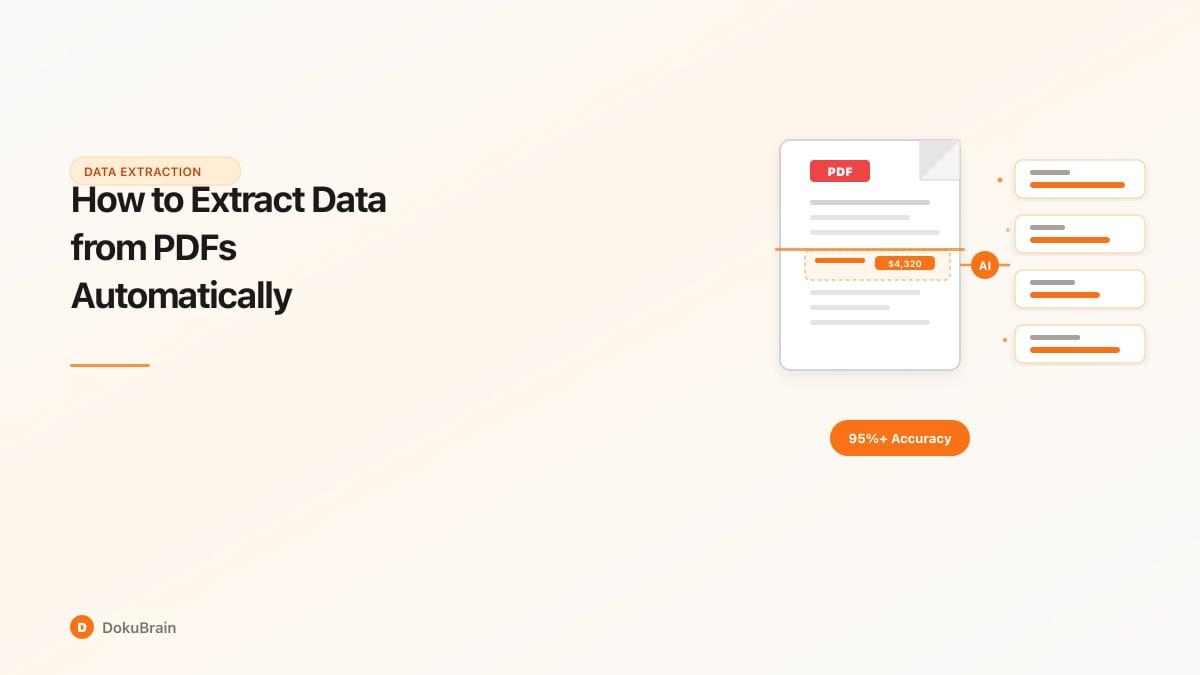
How AI PDF Data Extraction Works
The technology has changed fast. Five years ago, you needed to manually draw zones on a template and write rules for each document type. Now, AI handles most of that automatically.
Here is the process, stripped of jargon:
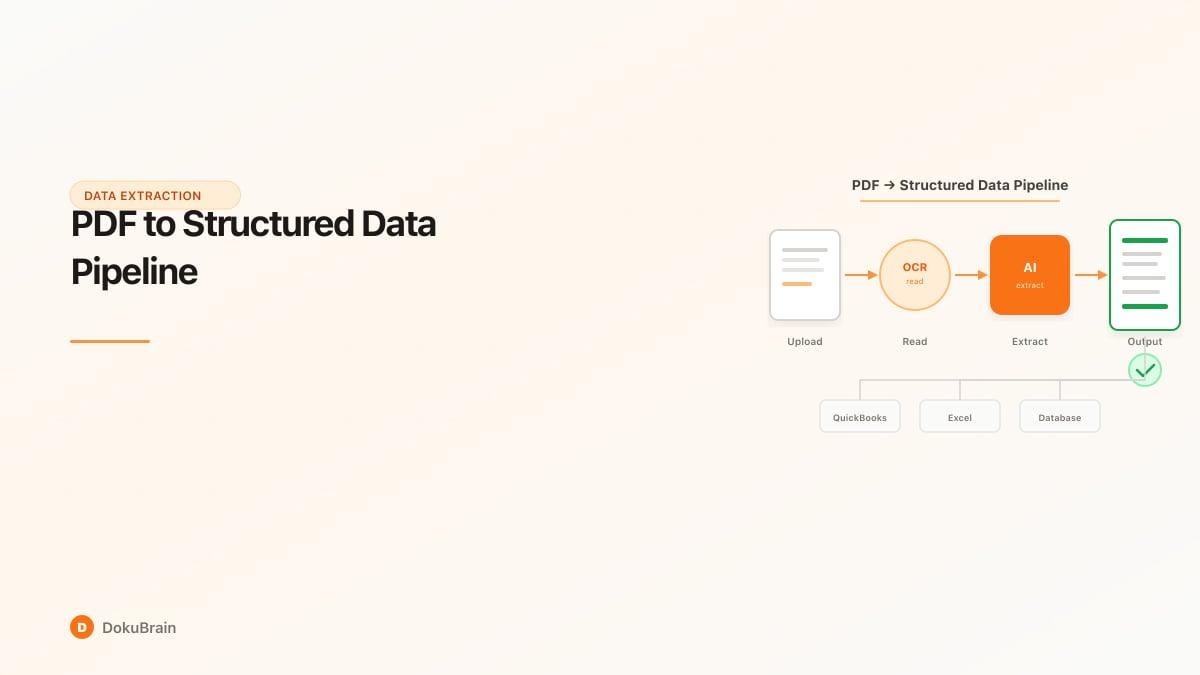
Step 1: The tool reads your document. If the PDF is digital-native (created from Word, an accounting tool, or a web form), the text is already machine-readable. If it is a scanned document or photo, OCR (optical character recognition) runs first to convert the image into text.
Step 2: AI identifies what the text means. This is where modern tools diverge from old-school OCR. A traditional OCR tool sees "12/15/2026" and outputs the string "12/15/2026." An AI extraction tool sees "12/15/2026" next to the word "Due Date" and understands: this is a payment deadline. It classifies the document, identifies field types, and maps the data to a structured schema.
Step 3: Structured data comes out the other end. The output is clean, labeled data — JSON, CSV, Excel, or a direct push into your accounting, CRM, or ERP system. Invoice number: INV-2024-0847. Vendor: Acme Supply Co. Total: $4,320.00. Due date: December 15, 2026.
OCR vs AI Extraction: They Are Not the Same Thing
This distinction matters because it changes what you can expect from a tool.
OCR converts images to text. That is it. If you scan a contract, OCR gives you a wall of raw text. Useful, but you still have to find the clause you care about.
AI extraction understands the text. It reads the raw output and identifies structure — this is a table, that is a header, this number is a total, that date is an expiration. It turns unstructured text into organized, labeled fields your systems can process.
Most modern tools combine both: OCR handles the reading, AI handles the understanding. If a vendor tells you their tool "uses OCR," ask what happens after the text is recognized. If the answer is "you get a text file," keep looking.
What "99% Accuracy" Actually Means
Every tool claims high accuracy numbers. Here is what to know: accuracy depends heavily on your documents, not just the software.
High-confidence extraction (95%+ accuracy): Standard business documents with consistent layouts — invoices from the same vendor, bank statements, purchase orders with clear tables. These are well-structured, and AI models handle them reliably.
Medium-confidence extraction (85-95%): Documents with inconsistent formatting — invoices from dozens of different vendors, each with a different layout. Multi-page contracts where clause numbering varies. The AI adapts, but some fields need a human check.
Lower-confidence extraction (below 85%): Handwritten notes, poor-quality scans, documents with complex nested tables or mixed languages. These require human review for critical fields.
The honest answer: for standard business documents (invoices, receipts, purchase orders), AI extraction is reliable enough to run unattended. For legal contracts and compliance documents where one wrong number matters, build in a human review step. Good tools give you confidence scores per field so you know which extractions to trust and which to verify.
What Types of Data Can You Extract from a PDF?
More than most people expect. Here is what modern AI extraction handles:
Key Fields — the bread and butter of extraction. Individual data points that map to specific labels: invoice numbers, PO numbers, reference IDs, dates (invoice date, due date, payment date, contract expiration), monetary amounts (totals, subtotals, tax, line item prices), names and addresses (vendor, customer, signatory), account numbers, routing numbers, tax IDs, and custom fields specific to your document type.
Tables — this used to be the hard part. Tables in PDFs are visually organized for humans but structurally messy for machines — especially when they span multiple pages, lack visible grid lines, or have merged cells. Modern AI tools detect table boundaries, identify column headers, and extract row data even from complex layouts. A 200-row line item table on an invoice? Extracted as structured data with item description, quantity, unit price, and total — per row. The output goes straight to Excel, CSV, or your database. No more re-typing 200 lines.
Full Text and Summaries — beyond field extraction, AI tools can pull the complete document text and generate summaries. Upload a 40-page contract and get a two-paragraph summary covering the key terms, obligations, and dates — in seconds. This is particularly useful for document search. Once text is extracted and indexed, you can search across your entire document library by meaning, not just keywords.
Metadata and Document Classification — AI does not just extract data from within the document — it also classifies the document itself. Upload a stack of mixed files, and the tool sorts them: this is an invoice, that is a lease agreement, this one is an employment contract. Classification happens automatically during extraction and feeds into downstream workflows.
PDF Data Extraction by Document Type
Generic extraction advice is only so useful. What you need to pull from an invoice is different from what you need from a lease. Here is how extraction plays out across common business document types.
Invoices and Purchase Orders — What gets extracted: invoice number, vendor name, billing/shipping addresses, line items (description, quantity, unit price, amount), subtotal, tax, total, payment terms, due date, PO number. Why it matters: the average SMB processes 500+ invoices per month. At four minutes of manual data entry per invoice, that is 33 hours of staff time — $800-$1,200/month in labor for a task a machine handles in minutes. What to watch for: invoices from different vendors look different. A good extraction tool adapts to varying layouts without requiring a new template for each vendor.
Contracts and Agreements — What gets extracted: party names, effective dates, termination dates, payment terms, key clauses (non-compete, liability, confidentiality), signature blocks, amendment references. Why it matters: legal teams spend 20-40% of their time on contract review. Extraction eliminates the hours spent finding specific terms in 80-page agreements.
Financial Statements and Reports — What gets extracted: account balances, period comparisons, line items from income statements and balance sheets, footnotes, dates, reporting entity. Why it matters: monthly close processes often involve pulling data from bank statements, P&L reports, and financial summaries into accounting systems.
HR Documents — What gets extracted: employee name, role, department, start date, salary, benefits elections, emergency contacts, tax form data (W-4, I-9 fields). Why it matters: onboarding a new hire generates 5-15 documents. Extracting key fields saves HR teams from manual data entry — and reduces errors that cause payroll and benefits issues down the line.
Leases and Real Estate Documents — What gets extracted: property address, landlord/tenant names, lease term dates, rent amount, escalation clauses, security deposit, renewal terms, square footage. Why it matters: property managers deal with dozens or hundreds of leases. AI extraction handles the first pass, surfacing the 15-20 key fields from each lease so your team reviews and confirms rather than reads every page.
Beyond PDFs: When Documents Arrive in Mixed Formats
Here is something most guides do not cover: your documents do not all arrive as PDFs.
Invoices come as email attachments — sometimes PDF, sometimes DOCX, sometimes embedded in the email body. Contracts might arrive as Word documents. Receipts come as scanned images. HR forms come as fillable PDFs, paper scans, or web form exports.
If your extraction tool only handles PDFs, you are still doing manual work for everything else. Look for tools that process multiple formats in the same pipeline: PDF, DOCX, HTML, TXT, EML (email files), and scanned images. Upload whatever you receive, and the tool handles the format differences internally.
This matters for three reasons: you stop converting files (no more "save as PDF" before processing), email-based workflows work (the tool processes the email body and the attachments — together), and batch processing becomes real (dump 200 mixed-format files into a folder and let the tool classify, extract, and route each one).
Scanned vs Digital-Native PDFs: not all PDFs are created equal. Digital-native PDFs — created from software (Word exports, accounting tool outputs, web-generated documents) — contain actual text data. Extraction is fast and highly accurate. Scanned PDFs — photographs of paper documents saved as PDFs — contain images, not text. OCR must run first to convert the image to text, then AI extraction processes the recognized text. Accuracy depends on scan quality: a clean, high-resolution scan performs almost as well as digital-native. A blurry phone photo of a crumpled receipt? Expect some extraction errors. If your team deals with scanned documents regularly, test your extraction tool specifically on scans during evaluation.
What Happens After Extraction? (The Part Most Guides Skip)
Extracting data from a PDF is step one. If that data sits in a CSV file on someone's desktop, you have traded one manual process for another.
The value of extraction comes from what the data does next.
Pushing Data to Your Business Systems — Extracted invoice data should land in QuickBooks, Xero, or your ERP — automatically. Extracted contract terms should populate your contract management database. HR form data should flow into your HRIS. Look for tools with native integrations or APIs that connect to your existing stack. The extraction tool is a pipeline, not a destination. Data should flow through it, not stop in it.
Triggering Workflows — This is where extraction becomes automation: an invoice arrives, data is extracted, if the amount exceeds $5,000 it routes to a manager for approval, if approved it pushes to the accounting system, and it is marked as processed. A contract is uploaded, key clauses are extracted, if non-standard liability terms are detected it flags for legal review. An HR form is received, fields are extracted, and an employee record is created in the HRIS with an onboarding checklist triggered.
Building a Searchable Document Library — Once data is extracted, it is indexed. That means every document your team has ever processed becomes searchable — not just by filename, but by content. "Show me all invoices from Acme Supply over $2,000 from the last 6 months." "Which contracts have an auto-renewal clause expiring before June?" These queries take seconds instead of hours of digging through folders. And because the data is structured, you can build dashboards, generate reports, and spot patterns across your document library.
How to Choose the Right PDF Extraction Tool
The market is crowded. Here is how to cut through the noise.
Questions to Ask Before You Sign Up:
1. What formats does it handle? PDF-only tools leave gaps. Look for PDF, DOCX, EML, HTML, TXT, and scanned image support.
2. Does it require templates? Older tools need you to define zones or templates for each document layout. Modern AI tools adapt to new layouts automatically. If you process invoices from 50 different vendors, you want template-free extraction.
3. What happens after extraction? If the tool outputs a CSV and stops, you are building the rest yourself. Look for native integrations (accounting, CRM, ERP), workflow triggers, and API access.
4. How does it handle confidence scoring? Good tools tell you how confident they are in each extracted field. A confidence score of 98% on an invoice total means you can auto-process it. A score of 72% on a contract clause means it needs human review.
5. Can you self-host? For regulated industries (healthcare, legal, finance), data sovereignty matters. Some tools are cloud-only. Others let you run the extraction stack on your own infrastructure.
Red Flags to Watch For: "100% accuracy" claims (no extraction tool is perfect on every document), per-page pricing with no volume tier, no API or webhook support, and black-box processing with no confidence scores.
Cloud vs Self-Hosted: Cloud tools are easier to start with — no infrastructure to manage, updates are automatic, scaling is handled for you. Self-hosted tools make sense when your documents contain sensitive data governed by regulations (HIPAA, GDPR, SOC2), your compliance team requires data residency guarantees, or you process high volumes and want predictable costs.
Getting Started: Extract Data from Your First PDF in Under 10 Minutes
You do not need a month-long implementation project. Here is the practical path:
1. Pick a real document. Not a clean demo PDF — grab an actual invoice, contract, or report from your workflow. Something your team processes regularly.
2. Upload it to a tool with a free trial. DokuBrain handles PDF, DOCX, and email files in one pipeline — upload your document and see extracted fields in under 60 seconds.
3. Check the output. Does the tool correctly identify the key fields? Are table rows extracted accurately? Does it classify the document type?
4. Test the messy case. Upload a scanned document, a multi-page contract, or an invoice from a vendor with an unusual layout. How the tool handles edge cases tells you more than how it handles the easy ones.
5. Connect the pipeline. If the extraction looks good, set up the downstream connection — push extracted data to your spreadsheet, accounting tool, or database. This is where time savings compound.
Five documents will tell you more than any feature comparison chart. Run the test with your documents, not theirs.
Quick Start Steps
Pick a real document
Grab an actual invoice, contract, or report from your workflow — not a clean demo PDF. Something your team processes regularly.
Upload it to a tool with a free trial
DokuBrain handles PDF, DOCX, and email files in one pipeline. Upload your document and see extracted fields in under 60 seconds.
Check the output
Verify the tool correctly identifies key fields, extracts table rows accurately, and classifies the document type.
Test the messy case
Upload a scanned document, a multi-page contract, or an invoice with an unusual layout. Edge-case handling tells you more than easy wins.
Connect the pipeline
Set up the downstream connection — push extracted data to your spreadsheet, accounting tool, or database. This is where time savings compound.
Frequently Asked Questions
How do I extract data from a PDF automatically?
Upload your PDF to an AI extraction tool. The tool uses OCR and machine learning to identify fields (dates, amounts, names, line items), extract them into structured data, and output the results as JSON, CSV, or push them directly into your business systems. No code or templates required — modern AI tools adapt to your document layout automatically.
Can AI extract data from a PDF?
Yes. AI-powered extraction tools combine OCR (to read the text) with machine learning (to understand what the text means). They identify invoice numbers, contract clauses, table rows, dates, and amounts — even from scanned or poorly formatted PDFs. Accuracy for standard business documents like invoices typically ranges from 90-98%, depending on document quality and the tool used.
How do I extract data from a PDF to Excel?
Most AI extraction tools let you export directly to Excel (XLSX) or CSV. Upload your PDF, let the tool extract the data, then download the structured output as a spreadsheet. For recurring documents like monthly invoices, you can set up automated pipelines that extract and export to Excel without manual intervention.
What is the best free PDF data extractor?
For occasional use, open-source tools like Tabula work well for tables. For business use with recurring documents, most commercial tools offer free tiers or trials. Free tools typically lack accuracy on complex layouts and offer no post-extraction workflow automation — so they work for one-off needs but break down at volume.
How do you extract tables from a PDF?
AI extraction tools detect table boundaries, column headers, and row data automatically — even when tables span multiple pages or lack visible grid lines. Upload the PDF, and the tool identifies table structures using computer vision. Extracted table data exports as Excel, CSV, or JSON. For scanned PDFs, OCR converts the image to text before table detection begins.
What is PDF parsing?
PDF parsing is the process of reading a PDF file and converting its contents into structured, machine-readable data. Basic parsing extracts raw text. Advanced parsing (using AI) understands document structure — identifying headers, tables, key-value pairs, and semantic meaning. The goal is to turn a static document into data your business systems can use.
Ready to try it yourself?
Start processing documents with AI in seconds. Free plan available — no credit card required.
Get Started Free