How to Extract PDF Data to a Spreadsheet Automatically (No More Copy-Paste)
Stop manually copying PDF data into Excel. Learn how to extract data from PDFs to spreadsheets automatically — including batch processing for 50+ documents at once.
The Copy-Paste Tax: What Manual PDF Data Entry Actually Costs
Your finance team has 50 vendor invoices sitting in a shared inbox. The old way: open each PDF, find the line items, squint at the totals, type them into Excel. One invoice takes eight minutes if you're careful. Fifty invoices? That's a full workday — gone. And that's before anyone catches the typos.
There's a faster way. Upload the batch, get structured spreadsheet data back in under a minute.
The time cost is obvious. Fifty invoices at eight minutes each adds up to nearly seven hours. A quarter's worth of financial statements? A full week. Lease renewals across 20 properties? Three days minimum, assuming nobody gets interrupted.
The error cost is hidden. Manual data entry averages a 1-4% error rate per field, according to industry research. On a 100-field spreadsheet, that's 1 to 4 wrong numbers. And it gets worse: error rates climb 40% after four hours of continuous entry as fatigue sets in.
A single transposed number on an invoice — $12,450 entered as $14,250 — cascades through reconciliation, reporting, and forecasting. One study in the Journal of the American Medical Informatics Association found transcription error rates as high as 26.9% in clinical data entry.
The real cost isn't the time or the errors. It's what your team isn't doing instead. A finance analyst entering invoice data into a spreadsheet is a $2-per-hour clerk for their own business. That's time not spent on analysis, vendor negotiations, or the cash flow forecast the CEO asked about last Tuesday.
How Automated PDF-to-Spreadsheet Extraction Works
The process is four steps. It's the same whether you're extracting one invoice or a hundred lease agreements.
Step 1: Upload — Drag your PDFs into the extraction tool. One file or an entire folder — doesn't matter. Most tools handle both native text PDFs (the kind you can select text in) and scanned documents (photographed or printed-then-scanned).
Step 2: Extract — The tool reads each page using a combination of OCR (optical character recognition) and machine learning. OCR converts the visual layout into text. Machine learning figures out what the text means — that "Net 30" is a payment term, that "$2,450.00" on the third line is a line-item total, not the invoice total.
This is where AI extraction pulls ahead of basic PDF converters. A converter sees a grid of pixels and guesses where the columns are. An AI extraction tool understands document structure. It knows that the number next to "Total Due" is the amount that matters, even if it's on page 2 in a different font size.
Modern AI tools achieve 95-99% accuracy on standard business documents like invoices and purchase orders. Scanned documents and complex tables with merged cells drop lower — typically 82-90% — which is why the next step matters.
Step 3: Review — The tool shows you a structured preview of what it found. This is your chance to catch the 1-5% that needs correction — usually items like handwritten notes, low-resolution scans, or unusual formatting the model hasn't seen before. Good tools flag low-confidence extractions so you know where to look. You're not reviewing every field — you're reviewing the ones the system is uncertain about.
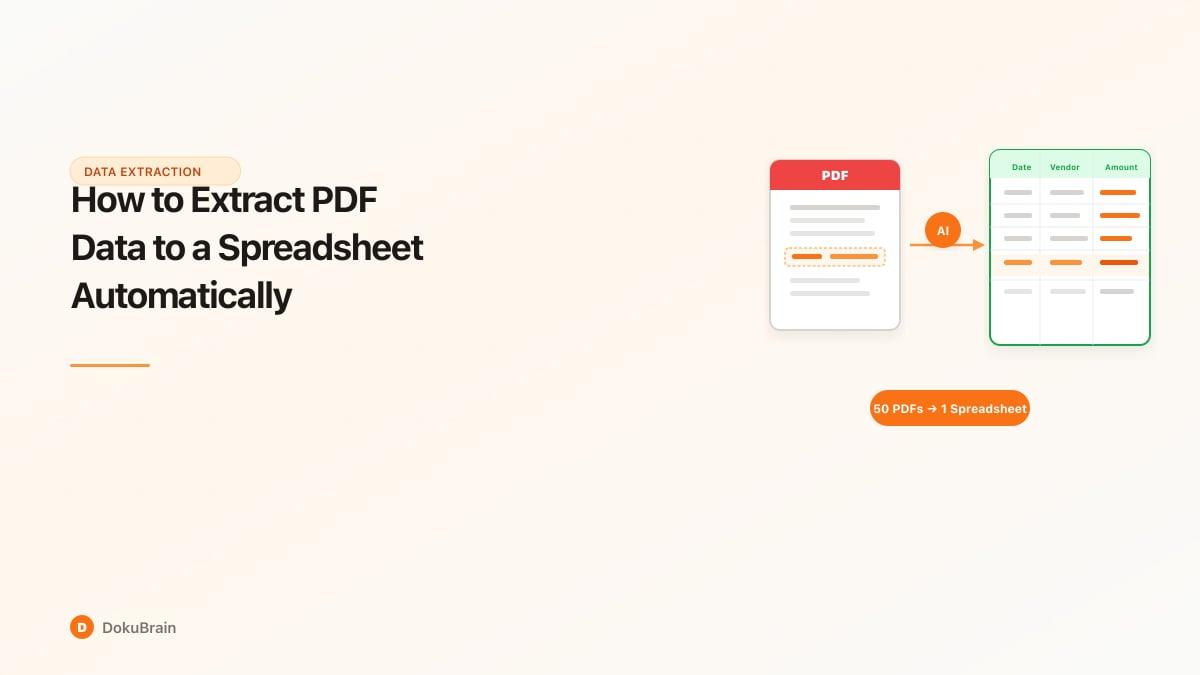
Step 4: Export — Download as XLSX, CSV, or push directly to Google Sheets. For batch jobs, each document becomes one row in the spreadsheet, with extracted fields as columns. Upload 50 invoices, get one spreadsheet with 50 rows — vendor name, invoice number, date, line items, totals, payment terms. That's it. The seven-hour copy-paste marathon becomes a two-minute upload.
What You Can Extract (By Document Type)
Not every PDF is an invoice. Here's what automatic extraction handles across the document types most teams deal with.
Invoices — Line items, quantities, unit prices, subtotals, tax amounts, invoice totals, vendor name and address, invoice number, invoice date, payment terms, PO reference numbers. This is the most common use case, and where AI extraction is most mature. If your team processes more than 20 invoices per month manually, automation pays for itself in the first week.
Financial Statements — Account balances, revenue figures, expense categories, period-over-period comparisons, footnote references, reporting dates, entity names. Quarterly and annual reports follow predictable structures, which makes them good candidates for batch extraction. Upload a year's worth of monthly P&L statements and get a trend spreadsheet in minutes.
Contracts and Legal Documents — Party names, effective dates, termination dates, dollar amounts, payment schedules, key clauses (non-compete, indemnification, liability caps), amendment references. Contracts are trickier than invoices because the layout varies wildly between firms. AI extraction handles this by understanding the semantic structure — identifying that "the Licensee shall pay" introduces a payment term regardless of where it appears on the page.
Lease Agreements — Rent amounts, escalation percentages, lease start and end dates, renewal option dates, security deposit amounts, tenant and landlord names, property addresses, CAM charges. Property managers dealing with 10+ leases track these fields in spreadsheets already. Extraction automates the population step — and catches escalation clauses that manual review sometimes misses.
The Part Most Guides Skip: What Happens After Extraction
Getting data into a spreadsheet is step one. What you do with it determines whether automation actually saves time or creates a different kind of busy work.
Auto-Populating Downstream Systems — Extracted invoice data can flow directly into your accounting software — QuickBooks, Xero, or your ERP. No re-keying. The spreadsheet becomes an intermediary format, not a final destination. DokuBrain supports export formats that map to common accounting import templates, so the data goes in clean.
Triggering Review Workflows — Not every extracted document should go straight to the books. Set rules: invoices over $10,000 get flagged for manager review. Contracts with indemnification clauses route to legal. Lease renewals within 90 days trigger a notification to the property team. The extraction creates the structured data. Workflow rules decide what happens next. This is the difference between a converter (dumb pipe) and a document operations platform (intelligent routing).
Building a Searchable Archive — Every extracted document feeds a searchable database. Six months from now, when someone asks "what did we pay Vendor X in Q3?" you don't open 47 PDFs. You search the archive and get the answer in seconds — with links back to the source documents. This compounds over time. The more documents you extract, the richer the archive, and the faster future lookups become.
Getting Started: Extract Your First PDF in Under 2 Minutes
Here's the walkthrough using DokuBrain. The process is similar across most modern extraction tools.
1. Upload your document. Drag a PDF into the upload area. Invoices, financial statements, contracts — any document type works. For batch processing, select multiple files or upload a folder.
2. Let extraction run. DokuBrain classifies the document type automatically (invoice, contract, statement, etc.) and applies the right extraction schema. No configuration needed for standard document types.
3. Check the preview. Review extracted fields in the structured preview. Key fields are highlighted. Low-confidence extractions are flagged so you know exactly where to look.
4. Export. Download as XLSX or CSV. For Google Sheets users, export CSV and import directly. For recurring workflows, set up automatic export to your preferred format.
Before trusting extracted data, spot-check these: Totals match — compare the extracted grand total against the PDF. This is the fastest way to catch extraction errors. Dates are right — date formats vary across documents (MM/DD/YYYY vs DD/MM/YYYY), verify the tool parsed them correctly. Multi-line items are complete — long line-item descriptions sometimes get split or truncated, scan for incomplete rows. Currency is correct — documents with multiple currencies (common in international invoices) can confuse extraction, check that USD stays USD.
After a few documents, you'll develop a feel for what the tool handles well and where it needs a nudge. Most teams find that after the first 20 extractions, they only need to review flagged items — not every field.
Quick Start Steps
Upload your PDFs
Upload a single PDF or a batch of documents to your extraction tool. Most tools accept drag-and-drop or folder uploads.
Let AI extract the data
The tool reads each document using OCR and machine learning, identifying fields like dates, amounts, vendor names, and line items automatically.
Review the structured output
Check the extracted data in the preview. Verify that key fields are captured correctly, especially totals, dates, and multi-line items.
Export to your spreadsheet
Download as XLSX, CSV, or push directly to Google Sheets. For batch jobs, all documents export to a single spreadsheet with one row per document.
Frequently Asked Questions
How do I extract data from a PDF to Excel automatically?
Upload your PDF to an AI extraction tool like DokuBrain. The tool reads the document using OCR and machine learning, identifies fields like dates, amounts, and line items, then exports the structured data as XLSX, CSV, or directly into Google Sheets. For batch processing, upload an entire folder of PDFs and get one consolidated spreadsheet back.
Can AI pull data from a PDF into a spreadsheet?
Yes. Modern AI extraction tools combine OCR with machine learning to read PDFs and output structured spreadsheet data. They handle native text PDFs and scanned documents, with accuracy rates of 95-99% on standard business documents like invoices and financial statements. The AI adapts to different layouts without manual templates.
What is the fastest way to convert PDF tables to Excel?
For a single PDF, use Excel's built-in Get Data > From PDF feature (Windows/Office 365 only). For multiple PDFs or complex layouts, use an AI extraction tool that handles batch uploads. Tools like DokuBrain process 50+ documents in under a minute and output clean, structured spreadsheet data without manual cleanup.
How do I extract data from multiple PDFs at once?
Use a batch processing tool. Upload your entire folder of PDFs, define the fields you need (or let AI detect them), and export all results to a single spreadsheet. Each document gets its own row, with extracted fields as columns. This turns a full day of manual work into a 2-minute upload.
Is there a free tool to extract PDF data to Google Sheets?
For basic single-file conversion, free tools like iLovePDF and Smallpdf handle simple tables. For recurring or batch extraction into Google Sheets, most commercial tools offer free tiers — DokuBrain includes a free trial with CSV export that imports directly into Google Sheets. Free tools typically struggle with scanned documents and complex multi-page tables.
Why does my PDF to Excel conversion look messy?
Basic converters treat PDFs as visual layouts, not structured data. They guess where columns start and end, which breaks on multi-page tables, merged cells, and inconsistent formatting. AI extraction tools solve this by understanding what the data means — identifying that "2,450.00" is a dollar amount and "Net 30" is a payment term — rather than copying pixel positions.
What types of PDFs can be extracted to spreadsheets?
AI tools handle invoices, financial statements, bank statements, contracts, lease agreements, purchase orders, receipts, tax forms, and most tabular documents. Both native text PDFs and scanned paper documents work, though scanned documents may require OCR processing first. Complex layouts like multi-page tables and documents with mixed formats are supported by modern tools.
Ready to try it yourself?
Start processing documents with AI in seconds. Free plan available — no credit card required.
Get Started Free