How to Extract Tables from PDFs with AI: 4 Methods That Actually Work (2026)
PDF table extraction doesn't have to mean hours of copy-paste. Here are 4 AI-powered methods — from free chatbots to dedicated platforms — with honest tradeoffs for each.
The Quick Answer
This guide is specifically about extracting tabular data — grids with rows, columns, and headers — from PDFs. That's a harder problem than general PDF text extraction and requires different tools. If you need to pull unstructured text, form fields, or named values from PDFs (not tables), see how to extract data from PDFs automatically. If you need the output in spreadsheet format specifically, see PDF to spreadsheet extraction. This guide covers the four methods purpose-built for tables.
The table is right there on screen. Clean columns, clear headers, four years of financial data. You try to copy it into Excel and get a single-column mess of numbers with no context — or, worse, nothing at all.
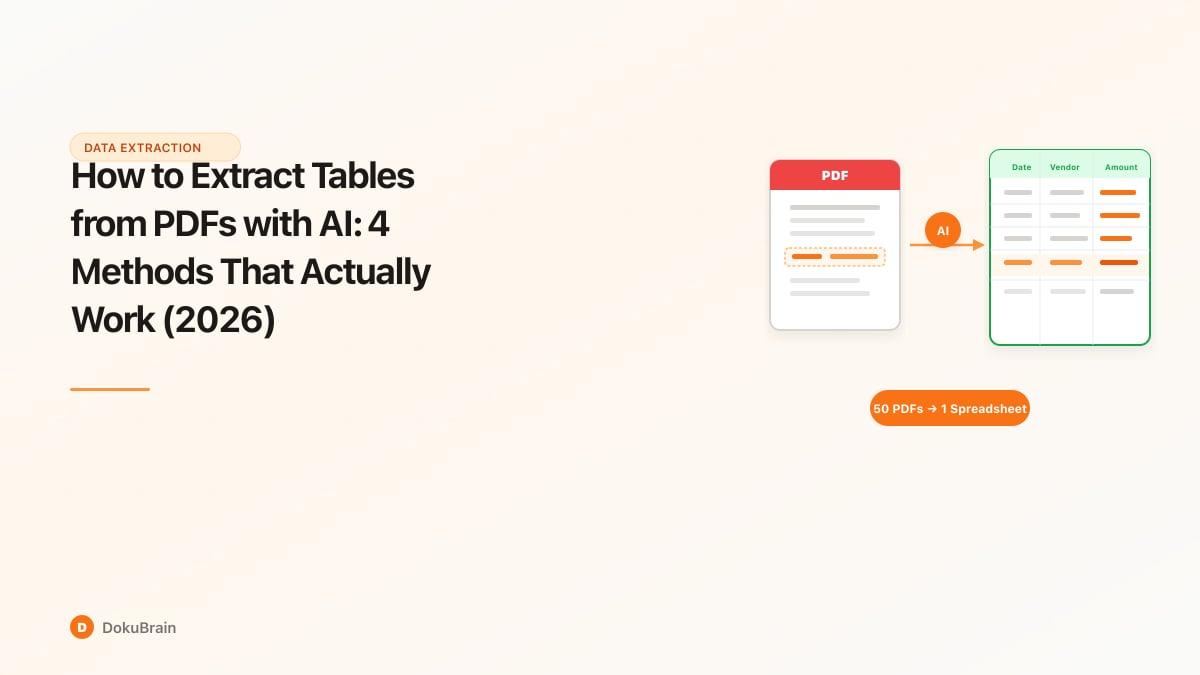
PDF tables are harder to extract than they look. The format was designed for printing, not data portability. Tables don't exist as data structures inside a PDF; they're rendered as positioned text elements or images. What looks like organized rows and columns is a visual grid that every extraction tool has to reconstruct from scratch.
AI has made this significantly better. But not all methods are equal, and picking the wrong one for your situation means either fighting with code you didn't need to write or getting output that still requires hours of manual cleanup.
- You need one table extracted right now → Use ChatGPT or Claude with file upload. Free, instant, good enough for one-off jobs. - You process the same document format on a schedule → Use a no-code tool with templates. Set up once, runs automatically. - You write Python and need control → Use pdfplumber or Camelot. More setup, more precision. - Your team processes documents regularly and needs the data inside a workflow → Use a dedicated AI document platform. Worth the setup cost at meaningful volume.
Method 1: AI Chatbots (ChatGPT, Claude, Gemini)
Best for: One-off extractions, exploratory work, simple tables in digital PDFs
Upload the PDF, ask the model to extract the table and return it as CSV or structured text. Most major AI chatbots accept file uploads and can identify table contents without any configuration.
In ChatGPT, GPT-4o's Advanced Data Analysis mode handles this well — upload the PDF, type "extract all tables as CSV files," and it returns downloadable files. Claude handles PDFs similarly. For simple, clearly formatted tables in text-based documents, this works and it works fast.
Where it breaks down: Scanned PDFs are the main failure point. Chatbots work from the PDF's text layer. If your document is a scanned image with no embedded text, the model either returns nothing or hallucinates content.
Complex tables are the second problem. Merged cells, multi-level headers, and tables spanning multiple pages frequently come out wrong.
Volume is the third. If you have 50 invoices to process every month, manually uploading files one at a time isn't a workflow.
Right situation: A finance analyst who needs to pull a rate table from a quarterly report for a one-time analysis. Wrong situation: anything recurring.
Method 2: No-Code Template Tools
Best for: Recurring documents with consistent layouts, non-technical users
Tools in this category let you define a template — "the invoice total is in this position, the line items are in this table" — and then process every document that matches that format automatically. Setup takes 20–30 minutes. After that, new documents arrive and the extracted data flows wherever you've connected it: a spreadsheet, a webhook, an email notification.
The real limitation is right there in the name: template-based. They work when your documents follow a predictable layout. If your vendor invoices all look the same, a template is excellent. If you're dealing with contracts from ten different law firms, each formatted differently, you'll spend more time managing template exceptions than you'll save on extraction.
Accuracy on complex tables is also uneven. Most of these tools use traditional OCR at their core, and OCR still struggles with scanned PDFs that have poor image quality, faded ink, or unusual fonts.
Right situation: An accounts payable team processing invoices from the same five vendors every month. Wrong situation: variable document formats from many different sources.
Method 3: Python Libraries
Best for: Developers who need programmatic control, custom output formats, high-volume batch processing
Three libraries dominate:
pdfplumber — Currently the most widely used Python PDF extraction library, with 9,500+ GitHub stars. It analyzes text positions and line geometry to reconstruct table structure. pdfplumber on GitHub
Basic usage: import pdfplumber, open your PDF, call page.extract_table() — each row is returned as a list of cell values. Works well on digital PDFs with clear column boundaries.
Camelot — Purpose-built for table extraction and handles complex structures — merged cells, multi-level headers, tables spanning pages — better than most libraries. Camelot documentation
Camelot has two modes: lattice (uses visible grid lines to detect cells — most accurate for tables with borders) and stream (uses whitespace to infer columns — useful for borderless tables). Important limitation: Camelot only works on text-based PDFs.
Tabula-py — A Python wrapper for the Java library tabula-java. Simpler API than Camelot, slightly less accurate on complex tables, but the fastest to get running.
The Camelot project maintains a side-by-side comparison of these libraries against each other and against commercial tools.
The honest tradeoff: Python libraries give you full control, but they require a developer, they need maintenance when document formats change, and they all fail on scanned PDFs without an OCR pipeline in front of them. Research on why table extraction fails in practice shows that coordinate-based extraction breaks down specifically on spans, nested headers, and implicit column boundaries.
Can You Extract Tables from Scanned PDFs?
Yes, but it requires an extra step: OCR (optical character recognition) to convert the scanned image into selectable text before table extraction can run.
Accuracy is directly tied to scan quality. A clean, high-resolution scan (300 DPI or higher) with dark text on a white background will OCR at 95%+ accuracy. A faded photocopy scanned at 150 DPI will struggle.
Modern AI-powered OCR — using vision language models rather than traditional character-by-character recognition — handles poor-quality scans better than legacy tools.
If you don't control the source documents, scan quality is fixed. Build your expectations accordingly. 300 DPI is the baseline worth asking suppliers or records teams to meet.
For digital PDFs (text-based, selectable text): pdfplumber, Camelot, or Tabula-py work directly. For scanned PDFs: None of these work directly — you need OCR preprocessing first. Options range from pytesseract (open-source, variable accuracy) to cloud APIs like Amazon Textract or Google Cloud Vision.
A key distinction: if you're unsure whether your PDF is text-based or image-based, try selecting text in a PDF viewer. If you can highlight individual words, it's text-based and Python libraries will work. If the cursor doesn't attach to text at all, it's a scanned image.
Method 4: Dedicated AI Document Platforms
Best for: Teams processing documents regularly, variable formats, data needed inside workflows
Dedicated document intelligence platforms handle the full pipeline — OCR when needed, table detection, structure recognition, and routing the extracted data into downstream systems — without requiring templates or developer maintenance.
The difference from no-code template tools: these platforms don't require you to define where the table is. You upload a document and the AI identifies tables, understands their structure, and returns clean output — whether it's invoice line items from a vendor you've never seen before or a rate schedule in an unfamiliar format.
DokuBrain processes 16+ document types and returns extracted fields through an API or webhook. For a finance team processing invoices from 30 different suppliers in 30 different formats, this is the right approach — no templates to maintain, no developer needed when a supplier changes their invoice layout.
According to IDP industry data, modern AI-powered document processing achieves up to 99% extraction accuracy on structured documents, with average accuracy on unstructured documents in the 85–90% range.
The honest tradeoff: Dedicated platforms cost more than Python libraries (which are free) and involve more setup than dragging a file into a chatbot. Processing more than a few dozen documents a month with variable formats is typically where dedicated platforms become the clear choice.
Common Problems and How to Fix Them
Merged cells come out wrong or duplicated. The most common failure across all extraction methods. Traditional coordinate-based tools split merged cells into multiple rows or discard content. Use Camelot in lattice mode if you're on Python — it uses grid lines rather than coordinate inference. AI-powered platforms using vision models handle this best.
Multi-page tables get split at page boundaries. A table continuing on page 2 often returns as two unrelated tables, with column headers missing from the second segment. Camelot handles this better than most libraries. Vision-based AI platforms handle it most reliably.
Two-row headers merge with data. Especially common with headers like "Q1 2024 / January / February / March" spanning multiple columns. Vision-based models understand header hierarchy; coordinate-based tools flatten it.
Table detected but content is scrambled. Usually a scan quality issue. Re-scan at 300 DPI minimum. If you don't control the source, try preprocessing the image — increase contrast, straighten any rotation — before OCR runs.
Numbers extracted as inconsistent text. Commas, periods, currency symbols, and whitespace all cause parsing issues after extraction. Build a light cleaning step — strip currency symbols, normalize decimal separators, strip whitespace — before loading into downstream systems.
Which method to choose in order: 1. Do you need this once, right now? → AI chatbot. 2. Do you process the same format on a regular schedule? → No-code template tool. 3. Are you a developer who needs programmatic output? → Python library. Start with pdfplumber for general use, Camelot if your tables have merged cells. 4. Does your team process meaningful volumes, deal with variable formats, or need the data inside a workflow? → Dedicated AI platform.
Frequently Asked Questions
What's the best way to extract tables from PDF to Excel?
For one-off jobs: upload to ChatGPT or Claude and ask for the output as CSV, then open in Excel. For recurring documents: a no-code platform that connects to Google Sheets or exports to Excel automatically. For high volume: a dedicated AI platform with API access that handles variable formats without templates.
How accurate is AI-based PDF table extraction?
Modern AI-powered extraction achieves 95%+ field-level accuracy on clean digital PDFs. Scanned documents with poor image quality drop significantly. Merged cells, borderless tables, and multi-level headers reduce accuracy across all methods. Scan quality sets a ceiling — 300 DPI or higher is the baseline for reliable results.
Can AI chatbots extract tables from PDFs?
Yes, with caveats. ChatGPT (GPT-4o), Claude, and Gemini all accept PDF uploads and can extract table contents. They work well for single tables in text-based PDFs. They struggle with scanned documents, tables spanning multiple pages, and complex layouts — and they don't scale for recurring workflows.
What about merged cells and multi-page tables?
These are the hardest cases. For Python: use Camelot in lattice mode, which uses visual grid lines to detect cell spans. For no-code tools: check whether the platform explicitly supports merged cell handling before committing. For dedicated AI platforms: vision-based models handle these best because they understand the visual structure of the table, not just text positions.
Do I need to write code to extract tables from PDFs?
No. AI chatbots (ChatGPT, Claude) and no-code platforms handle extraction without any code. Python libraries are only necessary if you need programmatic control over the output format, want to build it into an existing pipeline, or are processing very high volumes where per-document platform costs become a factor.
Can you extract tables from scanned PDFs?
Yes, but it requires an OCR step first to convert the image into readable text before table extraction can run. Accuracy depends heavily on scan quality — 300 DPI minimum, clean contrast, horizontal text. Modern AI-powered OCR using vision language models handles poor-quality scans better than traditional OCR tools.
What Python libraries extract tables from PDFs?
Three libraries dominate: pdfplumber (best general-purpose, 9,500+ GitHub stars), Camelot (best for complex tables with merged cells or multi-level headers), and Tabula-py (simplest to start with, good for straightforward tables). All three only work on text-based PDFs — scanned images require OCR preprocessing first.
Ready to try it yourself?
Start processing documents with AI in seconds. Free plan available — no credit card required.
Get Started Free